

-


移动开发
站-
热门城市 全国站>
-
其他省市
-
-

 400-808-3611
 白羽
2018-06-04
来源 :网络
阅读 1629
评论 0
白羽
2018-06-04
来源 :网络
阅读 1629
评论 0
摘要:Android如何使用ScrollView实现上拉下拉回弹,下拉头部放大功能。希望本文对大家学Android有所帮助
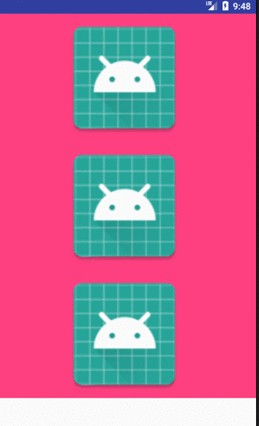
效果图:
自定义ScrollView:
public class MyScrollView extends ScrollView {
    //----头部收缩属性--------
    // 记录首次按下位置
    private float mFirstPosition = 0;
    // 头部图片是否正在放大
    private Boolean mScaling = false;
    private View dropZoomView;//需要被放大的view
    private int dropZoomViewWidth;
    private int dropZoomViewHeight;
    //----头部收缩属性end--------
    //------尾部收缩属性--------
    private View inner;// 子View
    private float y;// 点击时y坐标
    private Rect normal = new Rect();// 矩形(这里只是个形式,只是用于判断是否需要动画.)
    private boolean isCount = false;// 是否开始计算
    //最后的坐标
    private float lastX = 0;
    private float lastY = 0;
    //当前坐标
    private float currentX = 0;
    private float currentY = 0;
    //移动的坐标量
    private float distanceX = 0;
    private float distanceY = 0;
private boolean upDownSlide = false; //判断上下滑动的flag
//------尾部收缩属性end--------
public MyScrollView(Context context, AttributeSet attrs) {
super(context, attrs);
}
//初始化
private void init() {
setOverScrollMode(<em>OVER_SCROLL_NEVER</em>);
if (getChildAt(0) != null) {
inner = getChildAt(0);//这个是底部收缩的view
//头部收缩的
ViewGroup vg = (ViewGroup) getChildAt(0);
if (vg.getChildAt(0) != null) {
dropZoomView = vg.getChildAt(0);
}
}
}
<em>/***
</em><em> * 生成视图工作完成.该函数在生成视图的最后调用,在所有子视图添加完之后. 即使子类覆盖了 onFinishInflate
</em><em> * 方法,也应该调用父类的方法,使该方法得以执行.
</em><em> */
</em><em> </em>@Override
protected void onFinishInflate() {
//初始化
init(); super.onFinishInflate();
}
@Override
public boolean dispatchTouchEvent(MotionEvent ev) {
//这里只是计算尾部坐标
currentX = ev.getX();
currentY = ev.getY();
switch (ev.getAction()) {
case MotionEvent.<em>ACTION_MOVE</em>:
distanceX = currentX - lastX;
distanceY = currentY - lastY;
if (Math.abs(distanceX) < Math.abs(distanceY) && Math.abs(distanceY) > 12) {
upDownSlide = true;
}
break;
}
lastX = currentX;
lastY = currentY;
if (upDownSlide && inner != null) commOnTouchEvent(ev);
return super.dispatchTouchEvent(ev);
}
<em>/***
</em><em> * 触摸事件
</em><em> *
</em><em> * </em><strong><em>@param </em></strong><em>ev
</em><em> </em><em>*/
</em><em> </em>public void commOnTouchEvent(MotionEvent ev) {
//头部缩放计算
if (dropZoomViewWidth <= 0 || dropZoomViewHeight <= 0) {
dropZoomViewWidth = dropZoomView.getMeasuredWidth();
dropZoomViewHeight = dropZoomView.getMeasuredHeight(); }
switch (ev.getAction()) {
case MotionEvent.<em>ACTION_UP</em>:
//手指离开后头部恢复图片
mScaling = false;
replyImage();
// 手指松开尾部恢复
if (isNeedAnimation()) {
animation();
isCount = false;
}
clear0();
break;
//这里头尾分开处理,互不干扰
case MotionEvent.<em>ACTION_MOVE</em>:
//尾部处理
final float preY = y;// 按下时的y坐标
float nowY = ev.getY();// 时时y坐标
int deltaY = (int) (preY - nowY);// 滑动距离
if (!isCount) {
deltaY = 0; // 在这里要归0.
}
y = nowY;
// 当滚动到最上或者最下时就不会再滚动,这时移动布局
if (isNeedMove()) {
// 初始化头部矩形
if (normal.isEmpty()) {
// 保存正常的布局位置
normal.set(inner.getLeft(), inner.getTop(), inner.getRight(), inner.getBottom());
}
// 移动布局
inner.layout(inner.getLeft(), inner.getTop() - deltaY / 2,
inner.getRight(), inner.getBottom() - deltaY / 2);
}
isCount = true;
//尾部处理end
//头部处理
if (!mScaling) {
if (getScrollY() == 0) {
mFirstPosition = ev.getY();// 滚动到顶部时记录位置,否则正常返回
} else {
break;
}
}
int distance = (int) ((ev.getY() - mFirstPosition) * 0.5); // 滚动距离乘以一个系数
if (distance < 0) { // 当前位置比记录位置要小,正常返回
break;
}
// 处理放大
mScaling = true;
setZoom(1 + distance);
//头部处理end
break;
}
}
  <em>/***
</em><em>     * 回缩动画,尾部往下缩动画
</em><em>     */
</em><em>    </em>public void animation() {
        // 开启移动动画
        TranslateAnimation ta = new TranslateAnimation(0, 0, inner.getTop(),
                normal.top);
        ta.setDuration(200);
        inner.startAnimation(ta);
        // 设置回到正常的布局位置
        inner.layout(normal.left, normal.top, normal.right, normal.bottom);
        normal.setEmpty();
    }

    // 是否需要开启动画
    public boolean isNeedAnimation() {
        return !normal.isEmpty();
    }
    // 回弹动画,header往上缩动画 (使用了属性动画)
    public void replyImage() {
        //final float distance = dropZoomView.getMeasuredWidth() - dropZoomViewWidth;
        final float distance = dropZoomView.getMeasuredHeight() - dropZoomViewHeight;
        // 设置动画
        ValueAnimator anim = ObjectAnimator.ofFloat(0.0F, 1.0F).setDuration((long) (distance * 0.7));

        anim.addUpdateListener(new ValueAnimator.AnimatorUpdateListener() {
            @Override
            public void onAnimationUpdate(ValueAnimator animation) {
                float cVal = (Float) animation.getAnimatedValue();
                setZoom(distance - ((distance) * cVal));
            }
        });
anim.start();
}
//头部缩放
public void setZoom(float s) {
if (dropZoomViewHeight <= 0 || dropZoomViewWidth <= 0) {
return;
}
ViewGroup.LayoutParams lp = dropZoomView.getLayoutParams();
//lp.width = (int) (dropZoomViewWidth + s/2);
lp.width = (int) (dropZoomViewWidth);
lp.height = (int) (dropZoomViewHeight * ((dropZoomViewWidth + s) / dropZoomViewWidth));
dropZoomView.setLayoutParams(lp);
}
<em>/***
</em><em> * 是否需要移动布局 inner.getMeasuredHeight():获取的是控件的总高度
</em><em> *
</em><em> * getHeight():获取的是屏幕的高度
</em><em> *
</em><em> * </em><strong><em>@return
</em></strong><strong><em> </em></strong><em>*/
</em><em> </em>public boolean isNeedMove() {
int offset = inner.getMeasuredHeight() - getHeight();
int scrollY = getScrollY(); // 0是顶部,后面那个是底部
if (scrollY == 0 || scrollY == offset) {
return true;
}
return false;
}
//清理尾部属性值
private void clear0() {
lastX = 0;
lastY = 0;
distanceX = 0;
distanceY = 0;
upDownSlide = false;
}
}
布局:
最外层 是MyScrollView,接着是你将要写布局的线性布局或者是相对布局,再是你要拉升的Viewgroup,第三层才是有拉升效果的
效果图第一张的布局:
<sosee.mytext30.myscrollview android:layout_height="match_parent" android:layout_width="match_parent" tools:context="sosee.mytext30.MainActivity" xmlns:android="https://schemas.android.com/apk/res/android" xmlns:app="https://schemas.android.com/apk/res-auto" xmlns:tools="https://schemas.android.com/tools">

    <linearlayout android:background="@color/colorAccent" android:layout_height="match_parent" android:layout_width="match_parent" android:orientation="vertical">

        <imageview android:layout_height="200dp" android:layout_width="match_parent" android:src="@mipmap/ic_launcher">

        <linearlayout android:layout_height="match_parent" android:layout_width="match_parent" android:orientation="vertical">

            <imageview android:layout_height="200dp" android:layout_width="match_parent" android:src="@mipmap/ic_launcher">

            <imageview android:layout_height="200dp" android:layout_width="match_parent" android:src="@mipmap/ic_launcher">

            <imageview android:id="@+id/iv" android:layout_height="200dp" android:layout_width="match_parent" android:src="@mipmap/ic_launcher">

        </imageview></imageview></imageview></linearlayout>
    </imageview></linearlayout>
</sosee.mytext30.myscrollview>
效果图第二张的布局:
<sosee.mytext30.myscrollview android:layout_height="match_parent" android:layout_width="match_parent" tools:context="sosee.mytext30.MainActivity" xmlns:android="https://schemas.android.com/apk/res/android" xmlns:app="https://schemas.android.com/apk/res-auto" xmlns:tools="https://schemas.android.com/tools">

    <linearlayout android:background="@color/colorAccent" android:layout_height="match_parent" android:layout_width="match_parent" android:orientation="vertical">

        <imageview android:layout_height="wrap_content" android:layout_width="match_parent">

        <linearlayout android:layout_height="match_parent" android:layout_width="match_parent" android:orientation="vertical">

            <imageview android:layout_height="200dp" android:layout_width="match_parent" android:src="@mipmap/ic_launcher">

            <imageview android:layout_height="200dp" android:layout_width="match_parent" android:src="@mipmap/ic_launcher">

            <imageview android:id="@+id/iv" android:layout_height="200dp" android:layout_width="match_parent" android:src="@mipmap/ic_launcher">

        </imageview></imageview></imageview></linearlayout>
    </imageview></linearlayout>
</sosee.mytext30.myscrollview>
本文由职坐标整理并发布,希望对同学们有所帮助。了解更多详情请关注职坐标移动开发之Android频道!
 喜欢 | 0
 不喜欢 | 0


您输入的评论内容中包含违禁敏感词
我知道了

请输入正确的手机号码
请输入正确的验证码
您今天的短信下发次数太多了,明天再试试吧!
我们会在第一时间安排职业规划师联系您!
您也可以联系我们的职业规划师咨询:

版权所有 职坐标-一站式AI+学习就业服务平台 沪ICP备13042190号-4
上海海同信息科技有限公司 Copyright ©2015 www.zhizuobiao.com,All Rights Reserved.
 沪公网安备 31011502005948号







 资料领取
资料领取

 答疑解惑
答疑解惑

 技术交流
技术交流

 职业测评
职业测评

 面试技巧
面试技巧

 高薪秘笈
高薪秘笈